
Formatting Your Content
Headings
Headings organize page content and help visitors scan and understand information. They also provide important structure for visitors using assistive technology.
The page title is automatically formatted as Heading 1 (H1). Begin headings within your page content with Heading 2 (H2) and follow the heading levels in order. Do not skip heading levels based on how they look.
Below are examples of what heading levels 2-5 look like on the page.
Heading 2
Heading 3
Heading 4
Heading 5
 |
In order to remain ADA compliant, headers must go in order on the page, you cannot skip a heading level unless you are going back up from a lower level (i.e. you cannot go from heading level 2 to heading level 4, but you can go from heading level 4 to heading level 2). |
Heading Styles
Cascade includes additional styles that can be applied to headings to change their appearance. These styles do not change the heading's structural level. Select the appropriate heading level first based on the organization of your content, then apply a style if needed.
Heading 2 - headingGray
Heading 2 - Reverse Blue
Heading 2 - Reverse Gray
Heading 2 - Reverse Cyan
Heading 3 - headingGray
Heading 4 - headingGray
Heading 5 - headingGray
A heading's level and its appearance are two different things. Choose the heading level based on the structure of your content. Styles can then be used to change its appearance without changing that structure.
Quotes
Quotes are similar to titles and notifications in that they change the size and color of the text, however what separates them is that quotes are also in italic. Quotes are selected by highlighting your text and selecting Formats > Custom > Quotes. Like titles and notifications, quotes should be used infrequently and never as a heading. Quotes can be utilized to call attention to a particular phrase within a passage, or to pull out a significant quote in a section of your page content. Below is an example of what a quote looks like.
Quote
Horizontal Rule
Use horizontal rules sparingly to visually separate distinct sections of content.
- To insert a horizontal rule, select Insert and then Horizontal line.
- Click the line to add a style to it, then select Formats and Custom.
Color options:
line-break-white (creates a white line like the ones above)
Unstyled List
Use this option when content should retain list structure but display without visible bullets.
To create a list without bullets:
- At the top of the page click the Bullet List menu option in the WYSIWYG editor.

- Add each item.
- Highlight the full list and select Formats > Custom > noBullets.
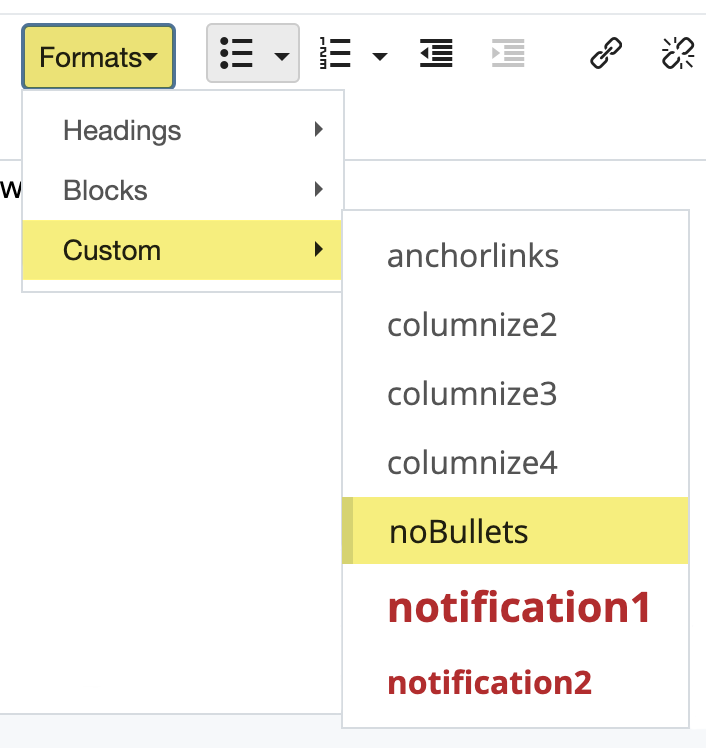
- Your list should end up looking like the list below.
- item one
- item two
- item three
- item four